How to Add and Manage Users in Your INBOX Account
January 15, 2025 | Email Marketing & Team Management | Read time: ~8min
If you're managing email campaigns with a team, it's not realistic to handle everything on your own. You'll have designers working on templates, marketers scheduling campaigns, and finance checking invoices. That's where INBOX comes in — it lets you add team members to your account, assign them roles, and control exactly what they can do. And the best part? You don't have to share your password with anyone.
INBOX: Manage Your Team Effortlessly!
START FREE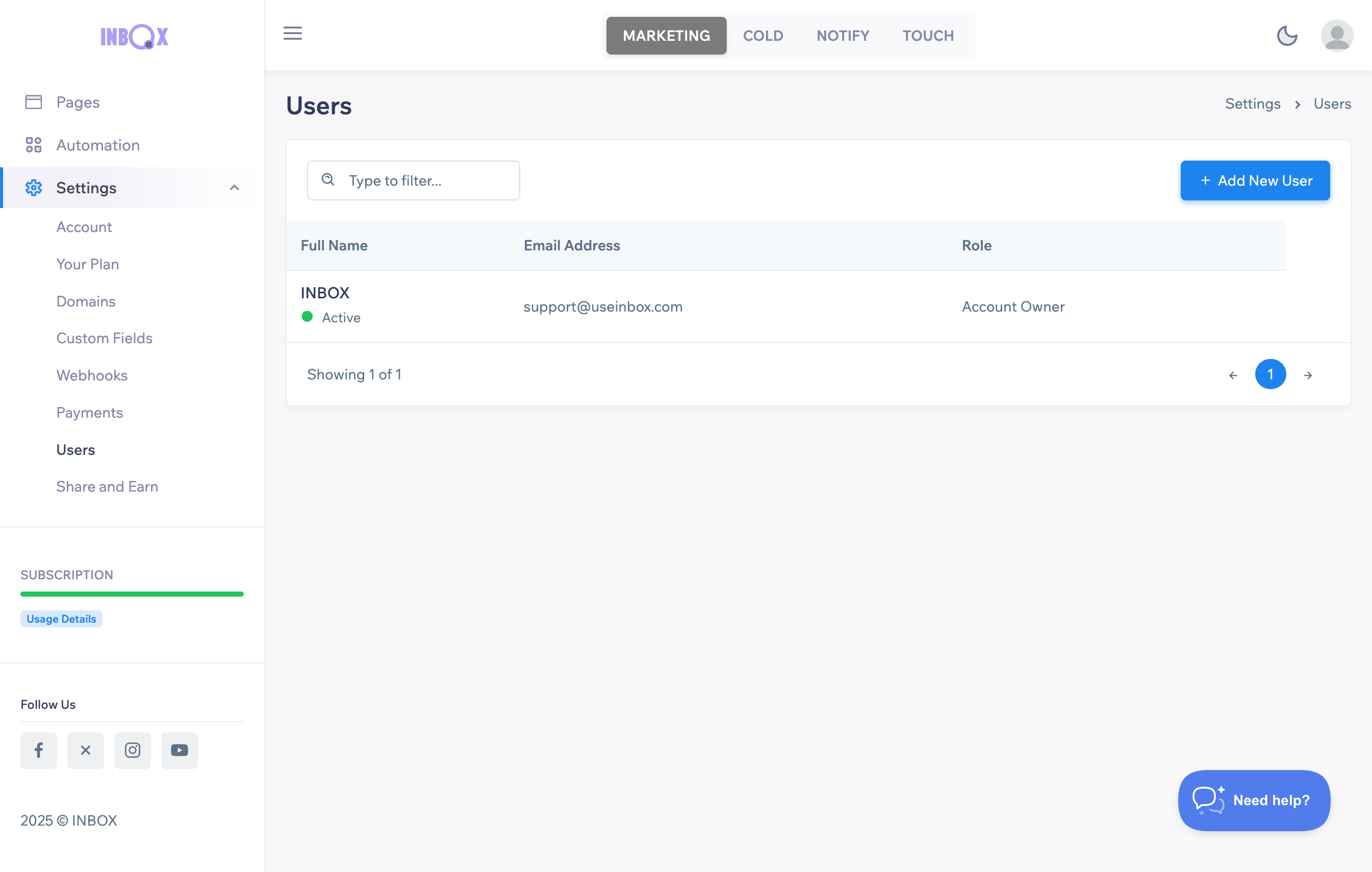

 Why Add Users?
Note: Multi-user access is available only on certain INBOX plans. If you don't see this feature in your dashboard, check out the upgrade options.
Think about it — do you want your finance team poking around campaign drafts, or your designers accidentally touching billing settings? Probably not. By inviting users, you can:
- Delegate tasks without confusion: Let each person focus on their part of the workflow.
- Keep sensitive info safe: Restrict access to billing, subscriber lists, or analytics.
- Speed up collaboration: Everyone works inside the same platform without juggling multiple logins.
- Stay in control: You're still the owner, deciding who sees what and for how long.
Whether you're sending newsletters or transactional emails, having multiple users makes managing your campaigns smoother.
User Roles in INBOX
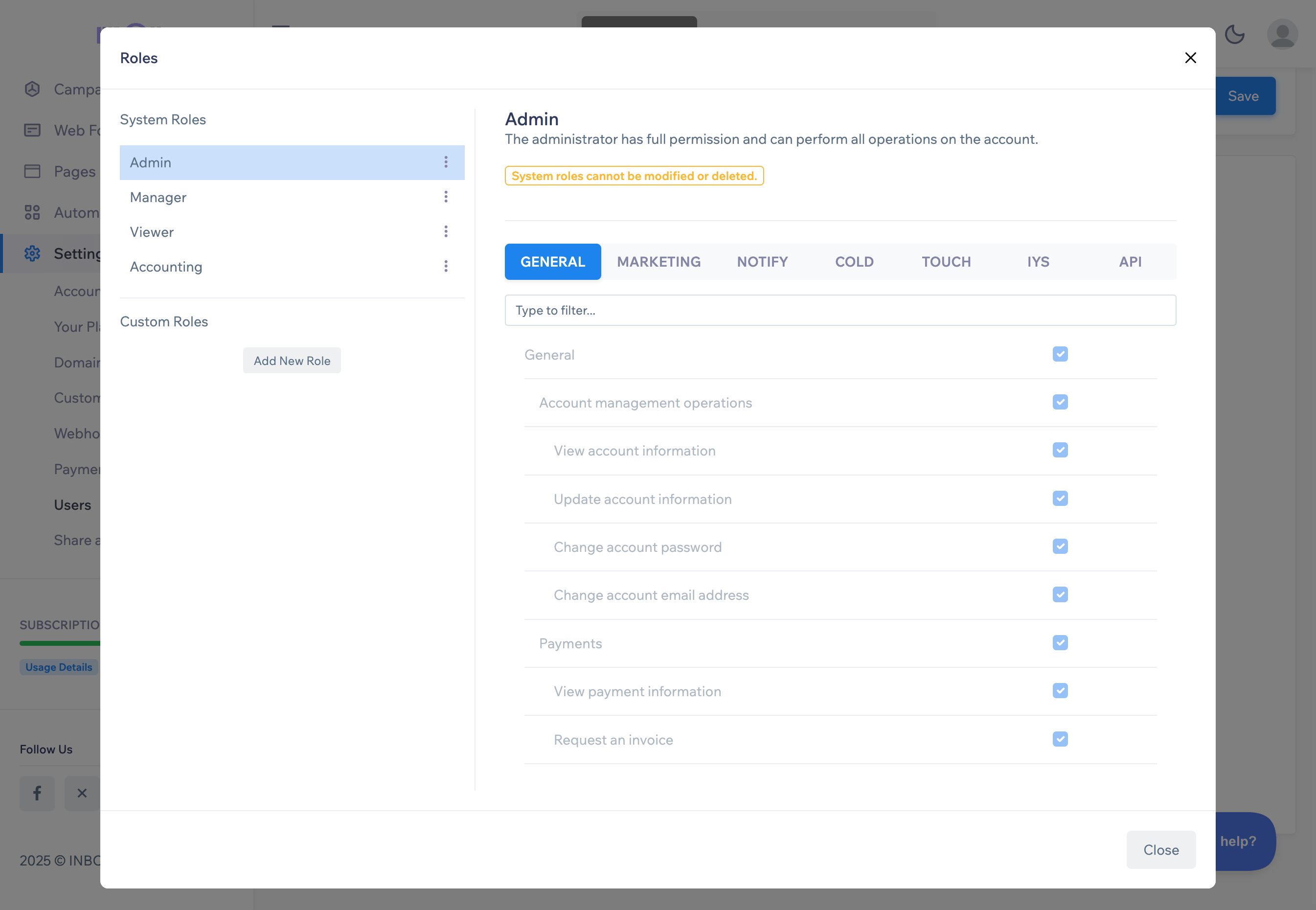
Not everyone needs full access. INBOX lets you assign different roles, so each team member has just the right permissions.
Administrator
This is the "full control" role. Admins can create or delete users, access billing, export subscriber data, and manage all campaigns. Essentially, they can do everything in the account.
For guidance on setting up admins, see our Knowledge Base.
Manager
Managers can do most things — create and edit campaigns, use Automation, or design emails with the Newsletter Design Tool — but they cannot manage users, export subscribers, or access billing.
It's perfect for marketing leads or content coordinators.
Viewer
A Viewer can only see reports and campaign stats. They can check performance in Reporting & Analytics, but they cannot edit or send campaigns. Ideal for clients, supervisors, or anyone who just needs to monitor progress.
Accountant
Accountants only see billing and invoices. No access to campaigns, subscribers, or settings — just the financial side. This keeps your marketing data separate and secure.
How to Add a User
Adding someone new is straightforward:
- Go to Settings → Users.
- Click Add New User.
- Enter their Name, Surname, and Email Address.
- Optional: Set an Expire Date if access should expire.
- Select the correct User Role.
- Optionally require password updates every 60 days.
- Click Save.
The user will receive an email to join your account. Until they accept, their status shows as Pending. You can resend or cancel invitations at any time.
For more detailed instructions, visit the Knowledge Base.
Updating or Changing Roles
Sometimes people switch roles. Maybe a marketer is now managing analytics, or an accountant leaves the company. You don't have to remove them — just edit their role:
- Go to Settings → Users.
- Click Edit next to the person's name.
- Change the role or adjust custom permissions.
- Save. Done.
Changes take effect immediately, so no downtime or confusion.
Removing a User
If someone no longer needs access:
- Navigate to Settings → Users.
- Click Delete next to their name.
- Confirm the removal.
They'll be removed instantly, keeping your email campaigns and subscriber data safe.
Best Practices
Here are some tips to keep your INBOX workspace safe and efficient:
- Assign roles based on necessity. Only give access to what each person actually needs.
- Use expiration dates for temporary collaborators.
- Check your user list regularly to remove inactive accounts.
- Encourage strong passwords and occasional updates.
Need extra security? Check out INBOX Shield and other data protection tools.
Wrapping Up
Adding users in INBOX isn't just about control — it's about making teamwork easier. Whether it's designing newsletters with the Newsletter Design Tool, running automated email sequences, or sending transactional emails, the right roles let your team work efficiently without compromising security.
Want to see how other teams are using INBOX? Check our Customer Reviews. Or explore more tools for personalization, landing pages, and signup forms to get the most out of your account.