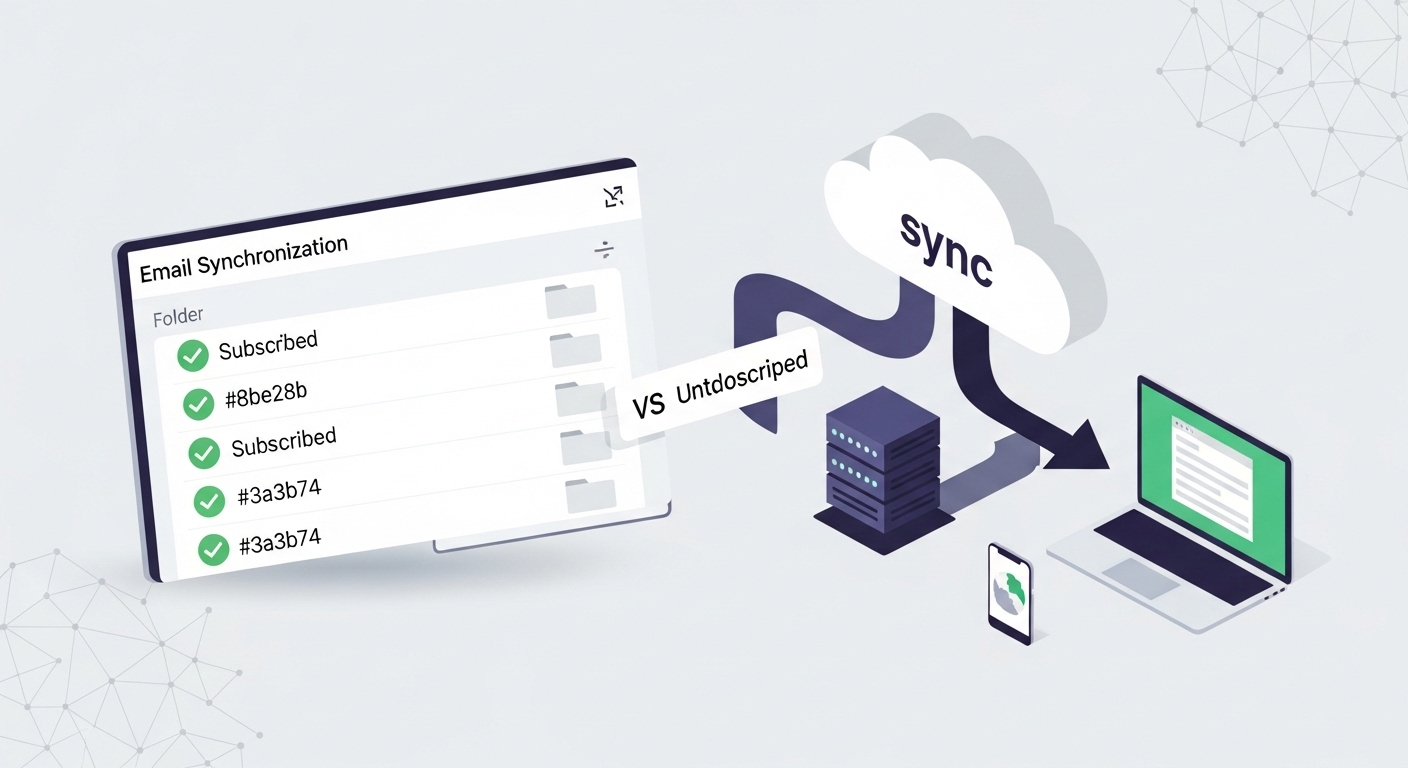
Email clients and servers communicate using specific protocols that determine how messages are stored, synchronized, and accessed. One of the most powerful features of IMAP is folder synchronization—but not all folders on your server need to appear in every client. That’s where “synchronizing subscribed folders” comes in, a setting that can be confusing because it is not always visible, and its purpose is rarely explained clearly.
In this guide, we will explain what synchronizing subscribed folders means, how it works, when you need to manage it, and how to configure it correctly. By the end, you will understand why this small configuration detail can dramatically affect how your email folders appear, perform, and sync across devices.
If you want to learn more about how email delivery and infrastructure works, you can explore our guide on email delivery infrastructure.
Understanding IMAP Folder Architecture
IMAP (Internet Message Access Protocol) is an email protocol that allows users to access and manage emails directly on the mail server instead of downloading them permanently to a device. This means your inbox, folders, and messages stay synchronized across multiple devices.
How IMAP Organizes Folders
- Folders exist as distinct directories on the mail server
- Clients can query the server for available folders
- Users can choose which folders to “subscribe” to for synchronization
For teams managing high-volume email systems and transactional messaging platforms, understanding folder architecture is essential. Learn more about transactional email best practices.
What Is Synchronizing Subscribed Folders?
Synchronizing subscribed folders is a feature that tells your email client to only download and display folders you have explicitly “subscribed” to on the IMAP server. Think of it like following channels on a streaming platform: the platform may host thousands of channels, but you only see and receive updates from the ones you choose to follow.
When folder subscription is enabled, your client queries the server for available folders, you select which to subscribe to, and only those folders are synchronized to your device. Changes made in subscribed folders sync back to the server automatically.
When You Need to Manage Subscribed Folders
Most modern email clients handle folder subscriptions automatically, but manual configuration becomes necessary in specific scenarios.
Common Scenarios Requiring Attention
- Missing Expected Folders — If your Sent, Drafts, or custom folders don’t appear in your client
- Too Many Irrelevant Folders — Client displays system folders, archives, or shared mailboxes you don’t use
- Slow Client Performance — Email app loads slowly or syncs intermittently due to excessive folder sync
- Shared Mailbox Access — Team mailbox folders aren’t visible without manual subscription
- Server Migration — Folder structure changes after switching providers require re-subscription
If you’re setting up email infrastructure for cold email campaigns or outreach programs, proper folder synchronization ensures follow-ups, replies, and tracking data remain organized and accessible.
Common Subscription Management Values
Different email clients and server configurations may present subscription options differently. Here are commonly encountered settings and their meanings:
| Setting | Description |
|---|---|
| Subscribe to all folders | Client syncs every folder on the server (may impact performance) |
| Subscribe only to selected folders | Manual control over which folders appear and sync |
| Auto-subscribe new folders | Automatically adds newly created folders to sync list |
| Disable subscription management | Bypasses subscription checks; may cause sync issues |
How to Configure Subscribed Folder Synchronization
Most email clients include subscription management in account settings. The configuration process usually looks like this:
- Open your email client settings or account preferences
- Locate your IMAP account configuration
- Navigate to Advanced, Folder, or Synchronization settings
- Find the option labeled “Subscribe to folders” or “Manage subscriptions”
- Select or deselect folders based on your workflow needs
- Save settings and allow the client to re-sync
Understanding these configurations is especially important for businesses sending automated notifications, password resets, receipts, or alerts. Read our guide on scalable transactional messaging for more insights.
Problems Caused by Incorrect Subscription Settings
Misconfigured folder subscriptions can lead to several frustrating issues:
- Missing or Invisible Folders — Important folders such as Sent or project archives may not appear if unsubscribed
- Duplicate Folder Displays — Clients may show both server paths and local aliases, creating clutter
- Sync Delays and Timeouts — Syncing too many folders consumes bandwidth and causes performance issues
- Message Routing Errors — Automated systems may fail to log messages if target folders aren’t properly synced
- Compliance Gaps — Archiving or audit requirements may be missed if critical folders aren’t subscribed
Best Practices for Folder Subscription Management
To ensure reliable, efficient email synchronization, consider the following best practices:
- Start Minimal, Expand as Needed — Begin with essential folders only; add others as workflow requires
- Use Standard Folder Naming — Stick to Inbox, Sent, Drafts, Trash for maximum client compatibility
- Document Your Folder Architecture — Maintain clear records of shared or custom folder structures
- Test Across Devices — Verify subscriptions work consistently on desktop, webmail, and mobile
- Review Periodically — Unsubscribe from inactive folders to maintain performance
- Leverage Automation Wisely — Ensure folders used for tracking or reporting remain subscribed
For teams implementing email marketing automation, documenting these configuration steps in internal knowledge bases—like our knowledge base—helps ensure consistent setup across staff.
Ready to Scale Your Transactional Email?
Explore flexible pricing built for reliable, high-performance transactional email delivery.
See Pricing Plans